
How to Create A DeLeo Server Account
- These credentials will be used to sign in to the server and access files from your iPhone or computer.
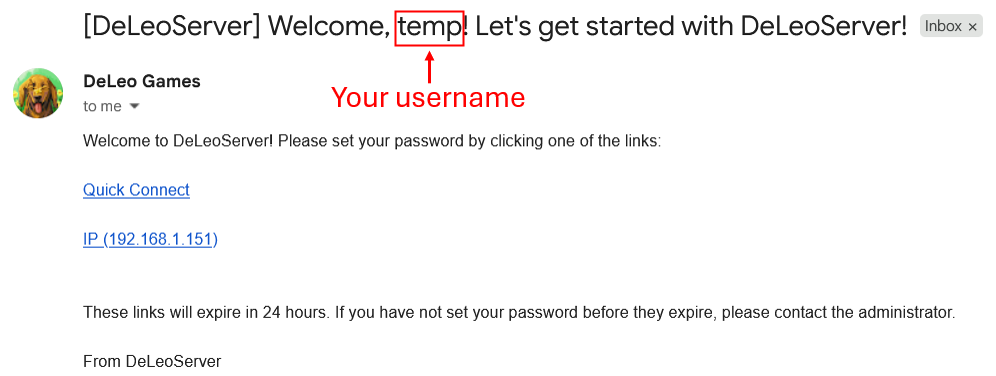
- Open the email sent by DeLeo Games to set your user account password.
- Your username is your name and provided in the Subject line of the email (example shown below).
- If you are NOT connected to DeLeo Wi-Fi select the first “Quick Connect” link
- If you are connected to DeLeo Wi-Fi select the second IP address link
Connecting to DeLeo Server (Initial Setup Only)
- The following instructions only need to be performed once on each device
- The initial setup instruction require devices to be connected to DeLeo Wi-Fi
Windows Setup Instructions
Download and save the Windows zip file:
setup-deleoserver.zipby clicking the button below
- Right-click the zip file and select “Extract All”
Right-click the batch file inside and select “Run as administrator”
- A security warning will appear, select Run
- When asked “Do you want to allow this app to make changes to your device?” Select Yes
A window will confirm the update is complete — press any key to exit.
Open File Explorer
On the left, right-click “This PC” and choose “Map network drive…”
- Select the S drive for Share and type “\\DeLeoServer\S-DRIVE” to connect
- Enter username and password
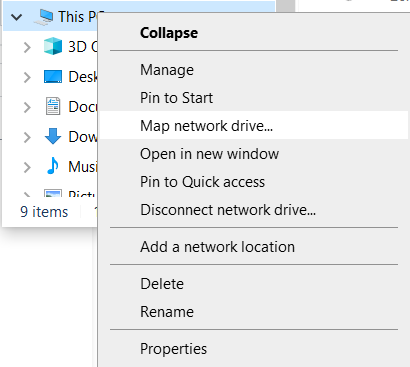
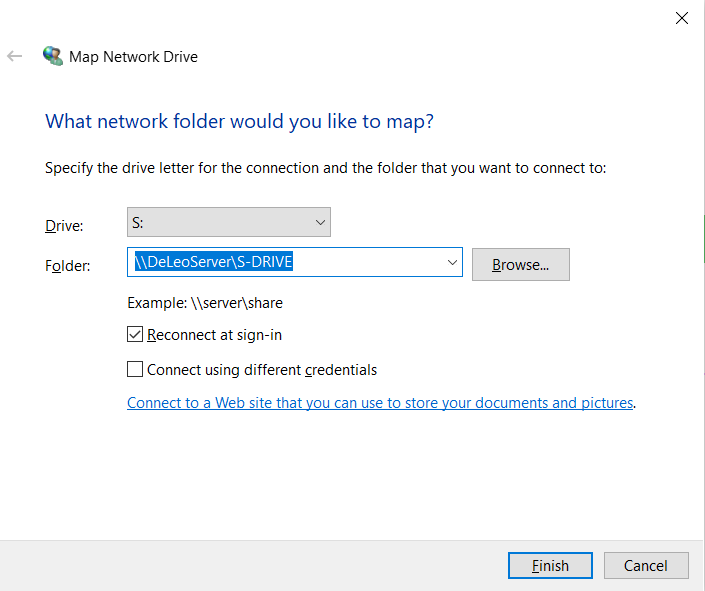
- If you have access to the HR drive or Management drive, please repeat steps 7 through 9 to mount those drives with the appropriate paths (\\DeLeoServer\HR and \\DeLeoServer\Management)
MAC Setup Instructions
- Download and save the MAC specific zip file:
- Double-click the zip file to extract it
- Double-click the script file (it will open Terminal automatically)
- When prompted, type your Mac password and press Enter
- Press any key when you see “Setup Complete!”
- Open Finder
- Press ⌘+K (Command + K keys together)
- Type:
smb://DeLeoServer/S-DRIVE - Click Connect
- Enter your username and password
- Check “Remember password”
Synology Drive iPhone Setup Guide
Step 1: Download Synology Drive App
- Open the App Store on your iPhone
- Search for “Synology Drive”
- Tap “Get“ next to the official Synology Drive app (by Synology Inc.)
Step 2: Connect to Server
- Open the Synology Drive app
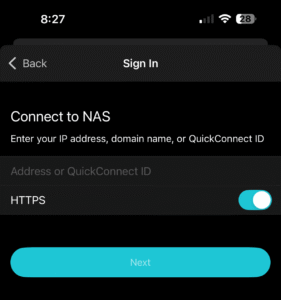
- Tap “Sign In”
- Enter QuickConnect ID
- Make sure HTTPS is turned ON
- Tap “Next”
- Tap “Continue”
Step 3: Login to DeLeoServer with Your Credentials
- Enter your username
- Enter your password
- Tap “Sign In”
- Wait for the app to sync your available folders
- You’re now connected!
Step 4: Add Synology Drive to iOS Files App (Recommended)
- Open the iOS Files app (pre-installed on your iPhone)
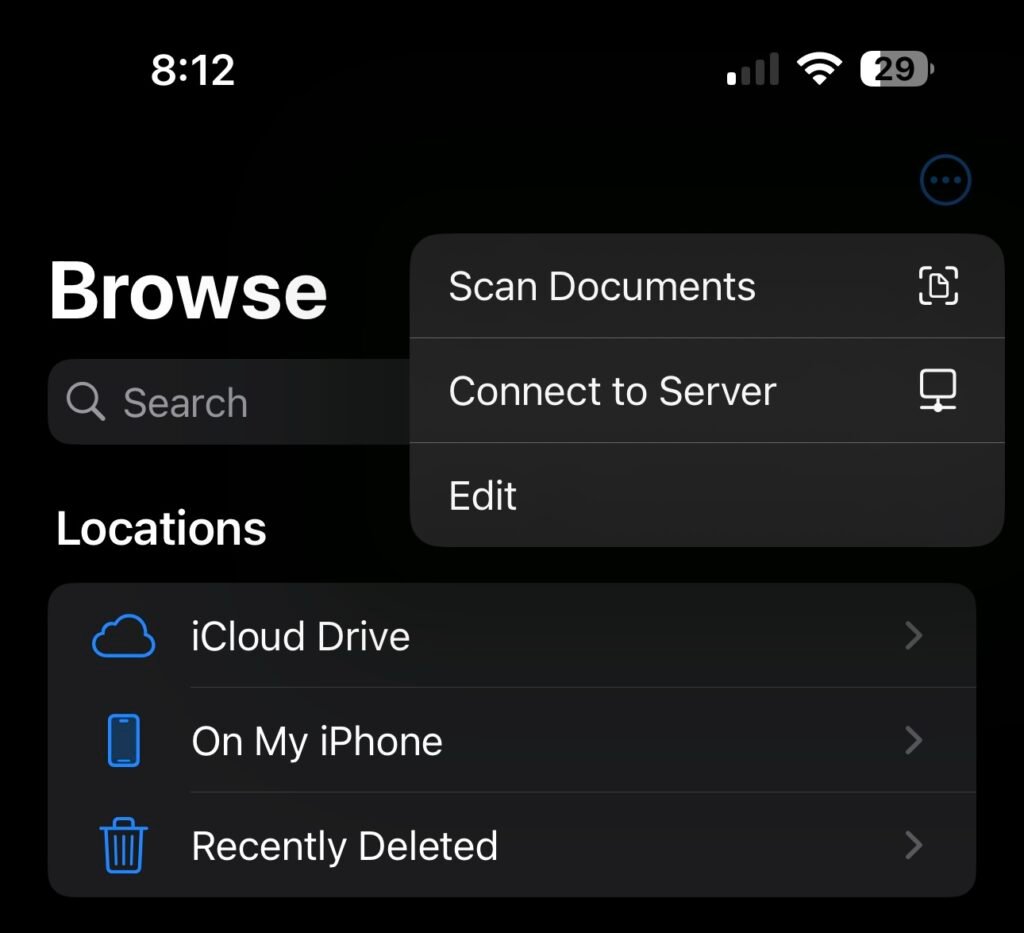
- Tap “Browse” at the bottom right
- Tap the three dots (…) in the top right corner
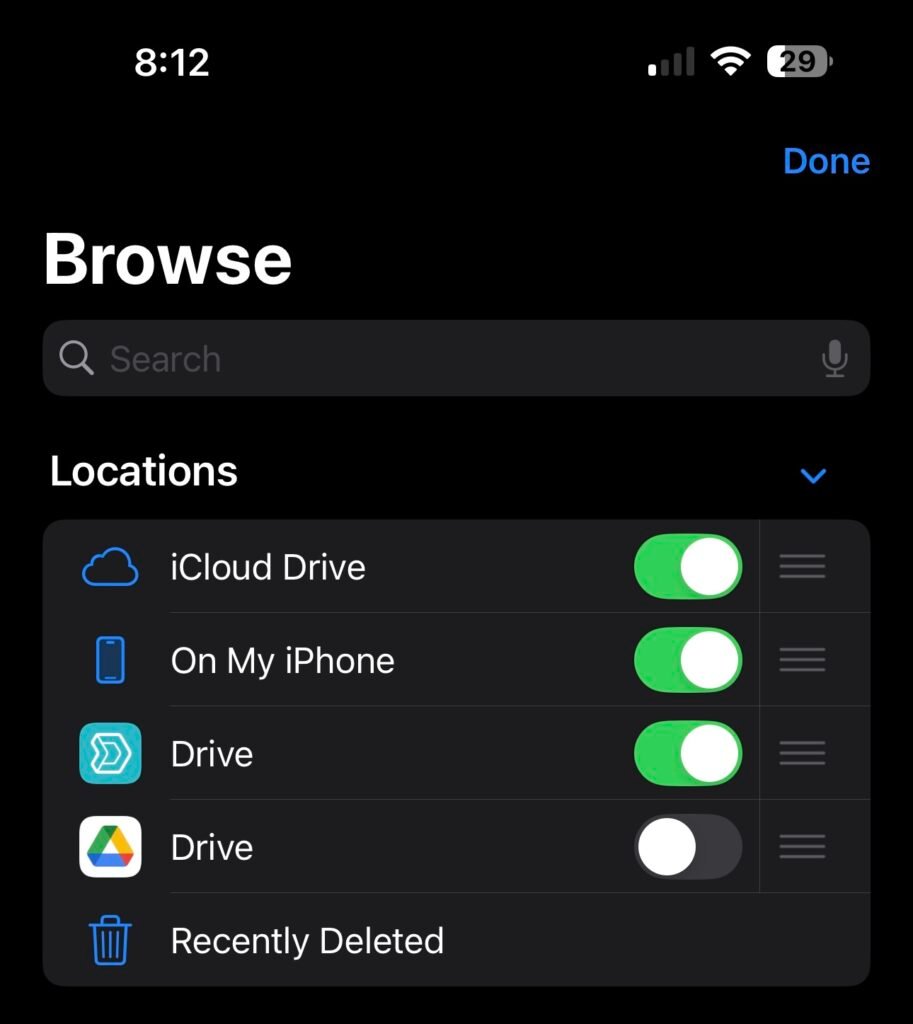
- Tap “Edit”
- Toggle ON “Synology Drive” in the list
- Tap “Done”
- Now you can access your files through both the Synology Drive app and the native iOS Files app.
Step 5: (Optional) Download Essential Apps for File Editing
Microsoft Office Suite:
- Microsoft Word
- Microsoft PowerPoint
- Microsoft Excel
Alternative Office Apps:
- Pages (Apple’s word processor – free)
- Keynote (Apple’s presentation app – free)
- Numbers (Apple’s spreadsheet app – free)
PDF and Document Viewers
- Adobe Acrobat Reader
Step 6: Working with Files
Opening Files from Files App:
- Open Files app
- Navigate to Team Folders > S-Drive (Share Drive)
- Tap the file to open it
- It should automatically open in the preferred editor (Word, Pages, PowerPoint etc.)
Editing and Saving:
- Make your changes in the editing app (Word, Pages, PowerPoint etc.)
- The file will save to and update on the server automatically
Offline Access:
- In Synology Drive app or Files app, tap the download icon next to important files
- Files will be available offline for viewing and editing
- Changes sync automatically when you’re back online
OpenVPN Setup (Management Only)
Important Notes:
- If your account does not have management permissions OpenVPN will not work on your device
- Always connect to VPN first before accessing the server
MAC Computer Setup
Step 1: Install OpenVPN
- Download OpenVPN Connect from openvpn.net
- Open the .dmg file
- Drag OpenVPN Connect to Applications folder
- Open Applications and launch OpenVPN Connect
Step 2: Configure OpenVPN
- In OpenVPN Connect, click “+”
- Select “File” tab
- Choose your .ovpn file
- Click “Connect”
- Enter username and password
Step 3: Mount Drive
The following steps are a repeat from the above section “Connecting To DeLeo Server”, specifically “MAC Setup Instructions” subsection. If you have already done this skip to Step 4
- Download and save the MAC specific zip file:
- Double-click the zip file to extract it
- Double-click the script file (it will open Terminal automatically)
- When prompted, type your Mac password and press Enter
- Press any key when you see “Setup Complete!”
Step 4: Connect Share Drives
- Open Finder
- Press ⌘+K (Command + K keys together)
- Type:
smb://DeLeoServer/S-DRIVE - Click Connect
- Enter your username and password
- Check “Remember password”
- Repeat Steps 2 through 6 but instead connect drives smb://DeLeoServer/Management and smb://DeLeoServer/HR
iPhone Setup
Step 1: Install OpenVPN
- Open App Store
- Search “OpenVPN Connect”
- Tap “Get” to install
Step 2: Configure OpenVPN
- Open OpenVPN Connect app
- Tap “+” (Add Profile)
- Select “File” tab
- Choose your .ovpn file (provided by admin)
- Tap “Add”
- Toggle the connection switch ON
- Enter username and password when prompted
Step 3: Connect to Server via iOS Files App (Recommended)
- Open the iOS Files app (pre-installed on your iPhone)
- Tap “Browse” at the bottom right
- Tap the three dots (…) in the top right corner
- Tap “Edit”
- Tap “Connect to Server”
- When asked for “Server” enter IP address (provided by admin)
- Tap “Connect”
- Select connect as “Registered User”
- Enter username and password
- Now you can access your files through the native iOS Files app when OpenVPN is running
Windows PC Setup
Step 1: Install OpenVPN
- Download OpenVPN Connect from openvpn.net
- Run the installer
- Click “Next” through all prompts
- Click “Install”
Step 2: Configure OpenVPN
- Open OpenVPN Connect
- Drag your .ovpn file into the app window
- Click “Connect”
- Enter username and password
- Click “OK”
Step 3: Connect Share Drives
- The following steps are a repeat from the above section “Connecting To DeLeo Server”, specifically “Windows Setup Instructions” subsection. If you have already done this skip to Step 4
- Right-click the zip file and select “Extract All”
Right-click the batch file inside and select “Run as administrator”
- Select Run
A window will confirm the update is complete — press any key to exit.
Open File Explorer
On the left, right-click “This PC” and choose “Map network drive…”
- Select the S drive for Share and type “\\DeLeoServer\S-DRIVE” to connect
- Enter username and password
- Repeat for Management and HR drives by selecting the M and H drive and typing “\\DeLeoServer\Management” and “\\DeLeoServer\HR”