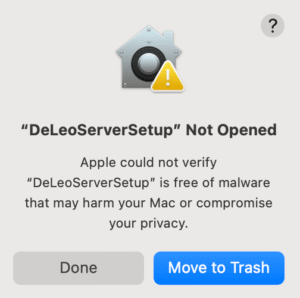
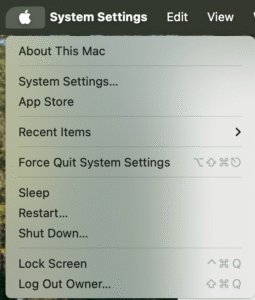
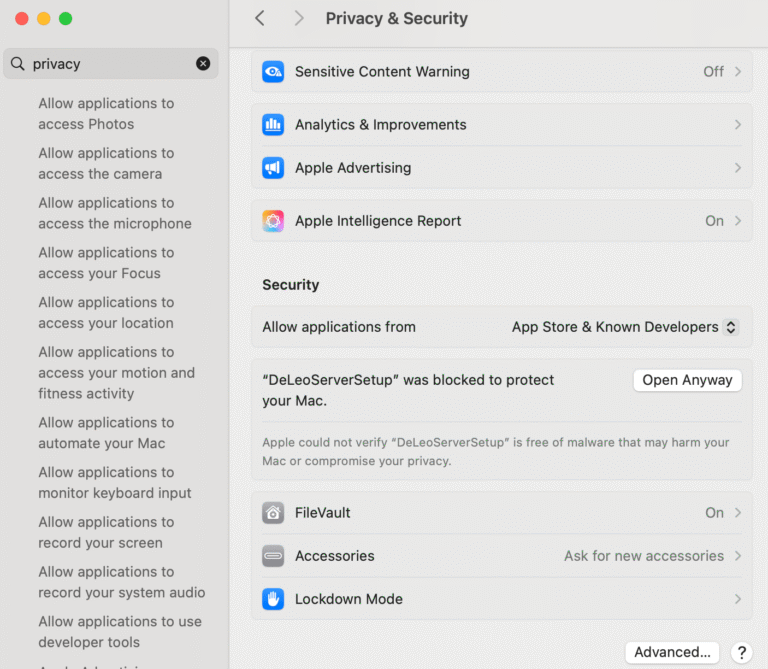
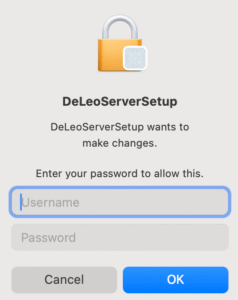
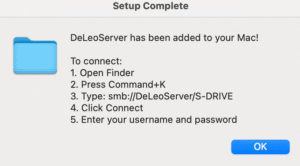
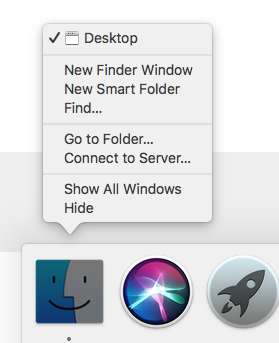
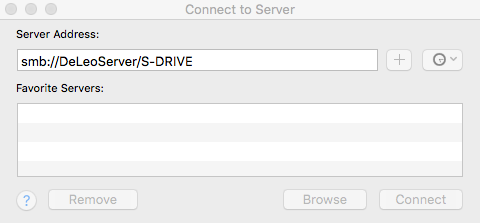
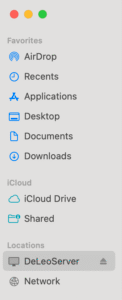
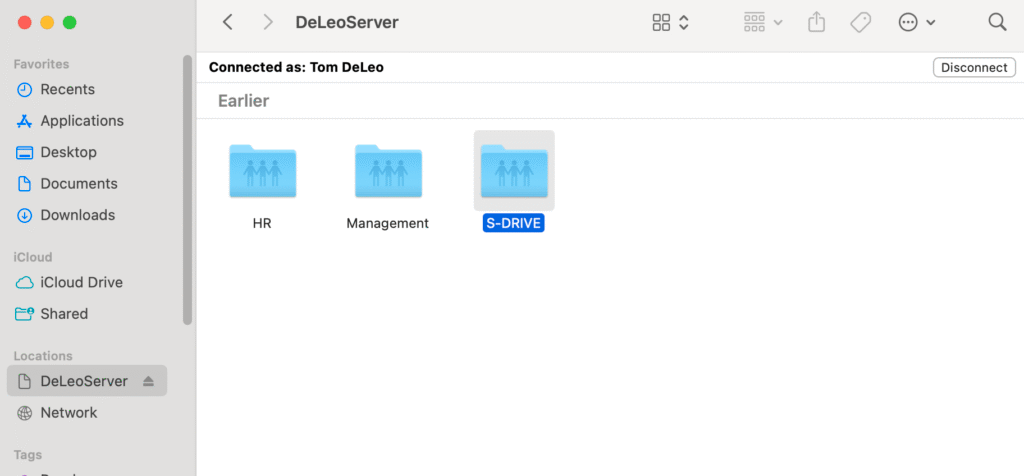
MAC Computer Initial Setup Instructions PrerequisitesThe following instructions only need to be performed once on each deviceThe initial setup instructions require devices to be connected to DeLeo Wi-Fi MAC Setup InstructionsDownload and save the MAC specific zip file: Download MAC Setup Tool Go to the downloads folder in Finder and double click on the DeLeoServerSetup appYou may be prompted by the following error: “DeLeoServerSetup” Not Opened Apple could not verify “DeLeoServerSetup” is free of malware…” Click on the Apple icon in the upper left hand corner and select System Settings Search for “Privacy” on the left hand side of the window. Then scroll down to the Security subsection and find “DeLeoServerSetup” was blocked to protect your Mac. and select Open Anyway Select “Open Anyway” and type in your password to run the software Now that permission has been granted, you may need to double click on the DeLeoServerSetup app again to runThe following window should appear to verify that your computer has been properly configured Now you will connect to the serverRight click on Finder at the bottom of the taskbar and select “Connect to Server…” Type: smb://DeLeoServer/S-DRIVE Click Connect Enter your username and passwordCheck “Remember password”Close Finder and reopen to confirm changes, you should now see folders inside DeLeoServerYou should see DeLeoServer mounted under “Locations” in Finder In Finder, click on the S-Drive once to highlightPress and hold Command key + Options key and drag the S-Drive to the desktop to create an aliasRepeat for Management and HR drive if availableThe aliases will persist on your desktop if internet connection to DeLeo Wi-Fi is lost, they will auto connect when connection is restored