
Synology Drive iPhone Setup Guide
Step 1: Download Synology Drive App
- Open the App Store on your iPhone
- Search for “Synology Drive”
- Tap “Get“ next to the official Synology Drive app (by Synology Inc.)
Step 2: Connect to Server
- Open the Synology Drive app
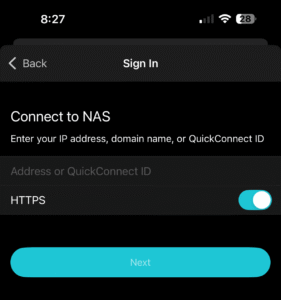
- Tap “Sign In”
- Enter QuickConnect ID (given by administrator)
- Make sure HTTPS is turned ON
- Tap “Next”
- Tap “Continue”
- If asked “Allow Drive to find devices on local networks?” tap Allow
- Drive will then ask “iPhone-DSdrive wants to use quickconnect.to to Sign In” tap Continue
Step 3: Login to DeLeoServer with Your Credentials
- Enter your username
- Enter your password
- Tap “Sign In”
- Wait for the app to sync your available folders
- You’re now connected and can access your shared folder (S-Drive) under the files tab at the bottom
Step 4: Add Synology Drive to iOS Files App (Optional but Recommended)
- Open the iOS Files app (pre-installed on your iPhone)
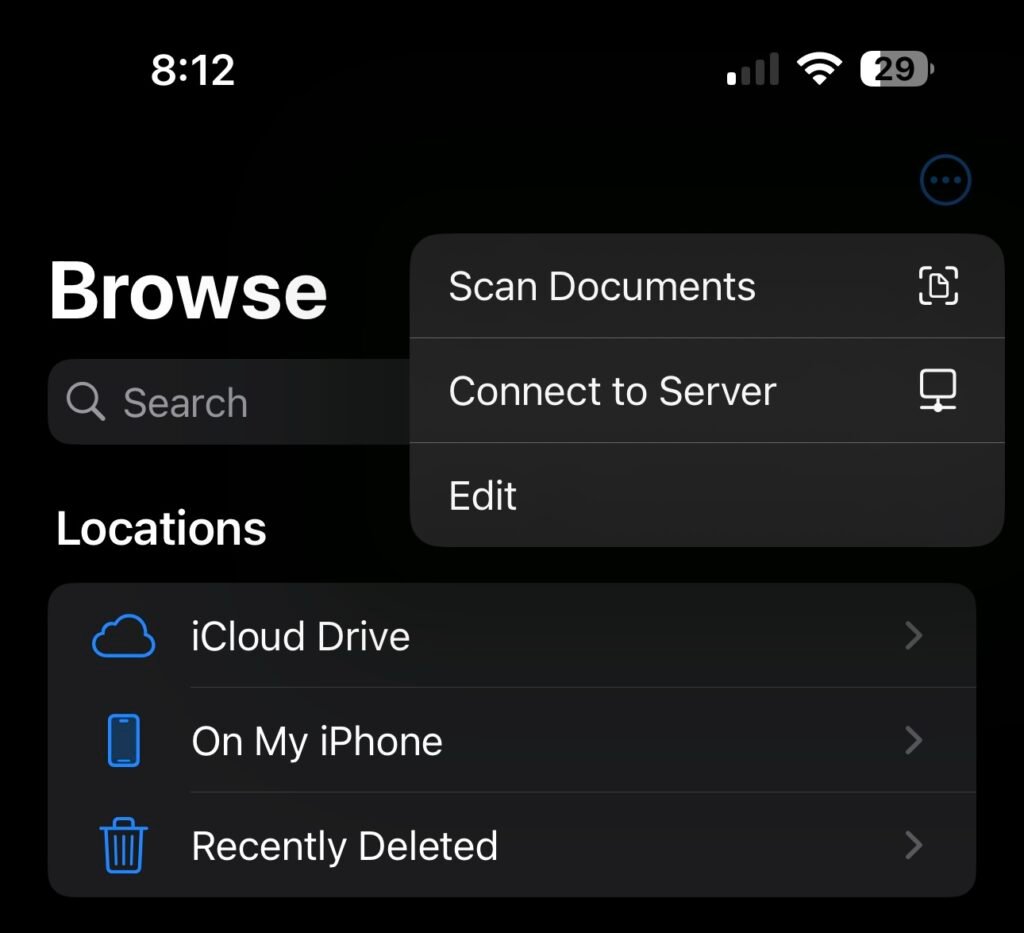
- Tap “Browse” twice at the bottom right to take you back to the home page of the Files app
- Tap the three dots (…) in the top right corner
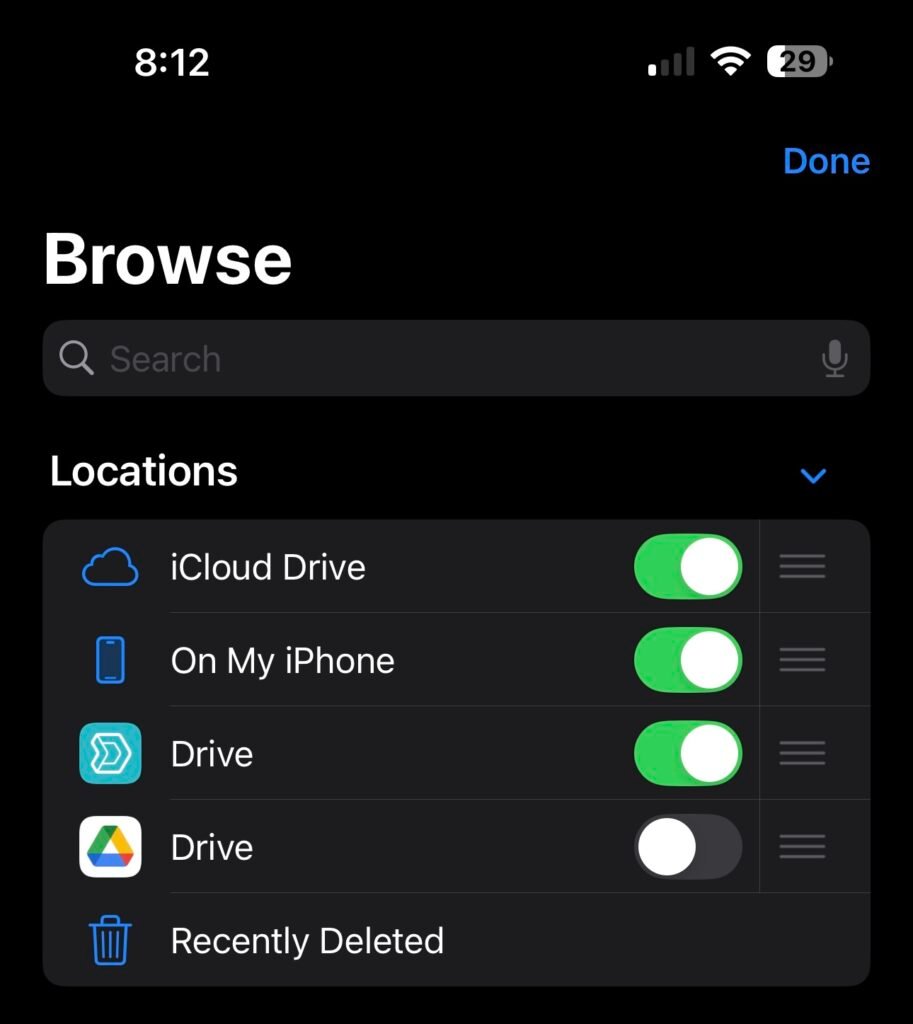
- Tap “Edit”
- Toggle ON “Synology Drive” in the list
- Tap “Done”
- Now you can access your files through both the Synology Drive app and the native iOS Files app.
- Now tap on Drive under the Locations heading
- If asked “Turn On “Drive”? ” tap Turn On
- Tap Drive, then Team Folders to see S-Drive along with all files
Step 5: (Optional) Download Essential Apps for File Editing
- In order to edit files on a mobile device it is best to use the corresponding app for the best experience. (Edit Word documents with Microsoft Word, PDF files with Adobe etc).
Microsoft Office Suite:
- Microsoft Word
- Microsoft PowerPoint
- Microsoft Excel
Alternative Office Apps:
- Pages (Apple’s word processor – free)
- Keynote (Apple’s presentation app – free)
- Numbers (Apple’s spreadsheet app – free)
PDF and Document Viewers
- Adobe Acrobat Reader
Step 6: Working with Files
Opening Files from Files App:
- Open Files app
- Navigate to Team Folders > S-Drive (Share Drive)
- Tap the file to open it
- It should automatically open in the preferred editor (Word, Pages, PowerPoint etc.)
Editing and Saving:
- Make your changes in the editing app (Word, Pages, PowerPoint etc.)
- The file will save to and update on the server automatically
Offline Access:
- In Synology Drive app or Files app, tap the download icon next to important files
- Files will be available offline for viewing and editing
- Changes sync automatically when you’re back online